Browse the guides
Making cards with AI
Turn slides, PDFs or notes into cards with ChatGPT, Claude, Copilot or another AI tool you use.
If your material is in slides, a PDF or your notes, an AI tool can draft the cards for you. Use the one you already have, such as ChatGPT, Claude, Microsoft Copilot or Google Gemini. Flash Reference gives you a prompt to paste into it, and you paste its answer back.
Your file only goes to your AI tool. Flash Reference never sees it, only the cards you paste back. Check your school's rules on which AI tools you can use with course materials.
Make the cards
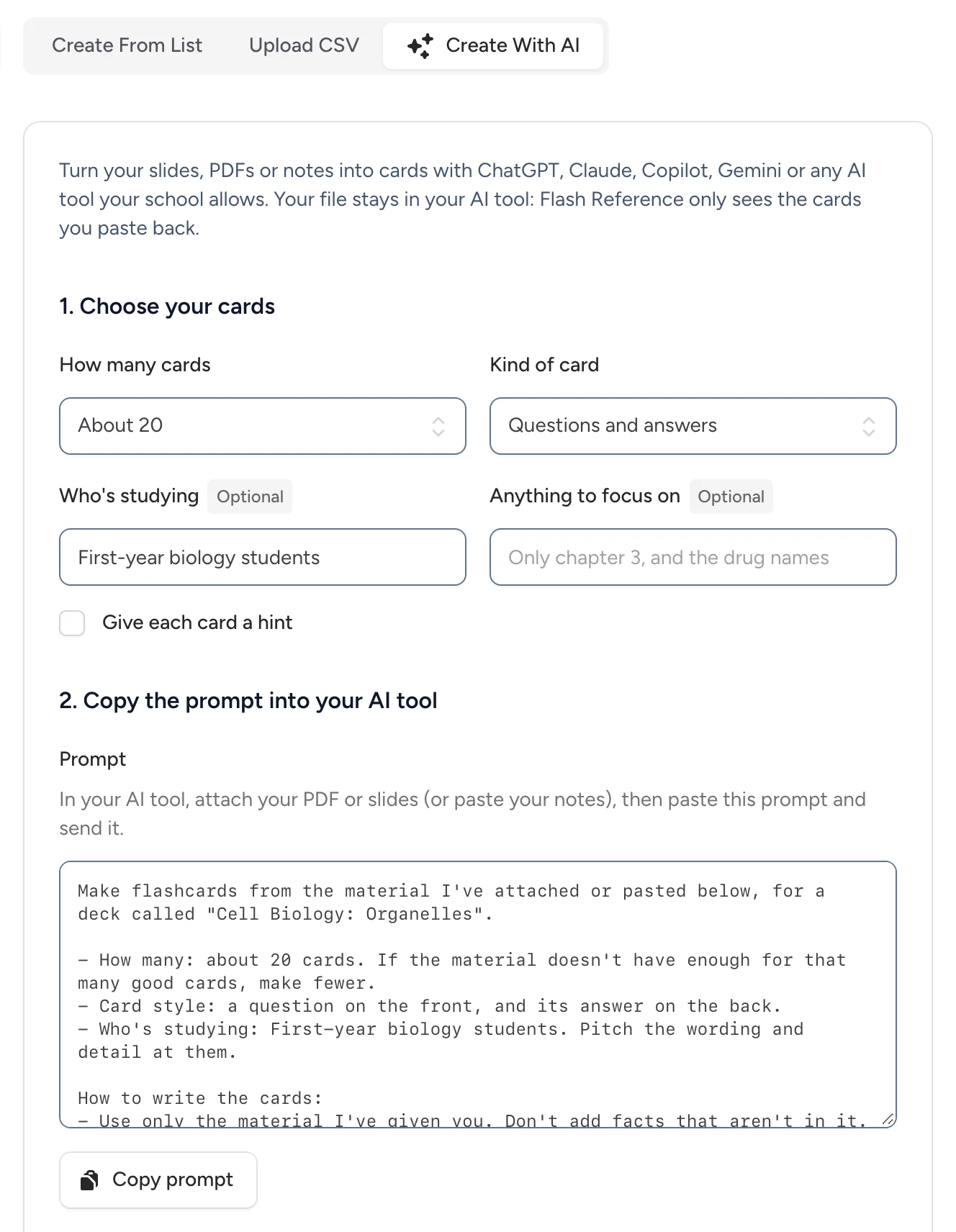
- Open the deck in the card editor. With no card open, select the Create With AI tab.
- Under Choose your cards, pick How many cards and the Kind of card: questions and answers, or terms and definitions. You can also say Who's studying and Anything to focus on, such as one chapter, and tick Give each card a hint.
- Select Copy prompt. The prompt includes the deck's name, so your AI tool knows the topic.
- In your AI tool, start a new chat, attach your PDF or slides (or paste your notes), then paste the prompt and send it.
- Copy the AI tool's whole answer. Most AI tools have a copy button under each answer, and on the block of code the answer comes in.
- Back in Flash Reference, paste the answer into Your AI tool's answer. The cards it found are listed underneath.
- Read through them, then select Add cards.
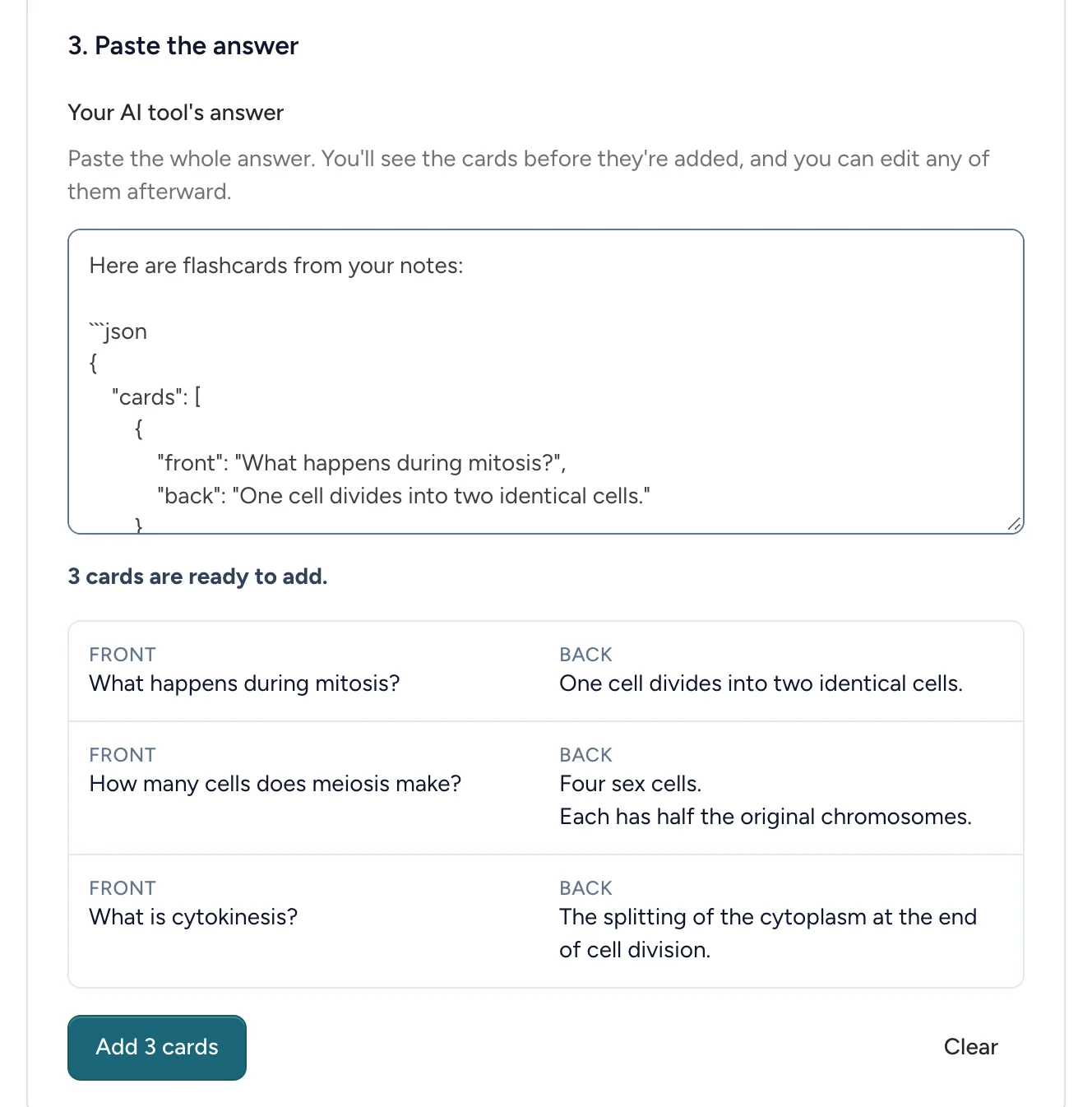
New cards are added after the deck's existing cards.
If your browser doesn't let Flash Reference copy for you, the prompt is selected instead: press Ctrl+C (⌘C on a Mac) to copy it.
Check every card
AI tools make mistakes. They can get facts wrong, miss what matters most, or word a question so the answer is obvious. Before students see the deck:
- Open each card in the editor to fix it, or delete the ones you don't want. See Adding and editing cards.
- Select Preview at the top of the card editor to study the deck as a student would.
What you can paste
The prompt asks your AI tool to answer in a format Flash Reference reads reliably. If you wrote your own prompt, you can also paste:
- A table with columns headed Front and Back (or Term and Definition, or Question and Answer), and optionally Hint.
- One card per line, as
front|backorfront|hint|back, the same as Create From List.
Everything you paste is plain text, so a card about the <ul> tag shows <ul>. You can format cards in the editor afterward. Line breaks are kept, and hints are cut to 128 characters.
Up to 200 cards are added at a time. If the answer has more, add the first 200, then paste the rest.
If something goes wrong
- "No cards found." Check you pasted the AI tool's answer, not the prompt.
- "Part of the answer seems to be missing." The AI tool stopped partway, or the copy missed the end. Ask it to continue, or to make fewer cards, then paste the whole answer again.
- Some lines were left out. Lines that aren't cards, such as "Here are your flashcards," are skipped. The message under the box says how many.
- Your AI tool can't open the file. Some AI tools, or their free plans, limit uploads. Copy the text out of your slides or PDF and paste it into the chat instead.